How to Drop a Pin on Google Maps? Ultimate Guide
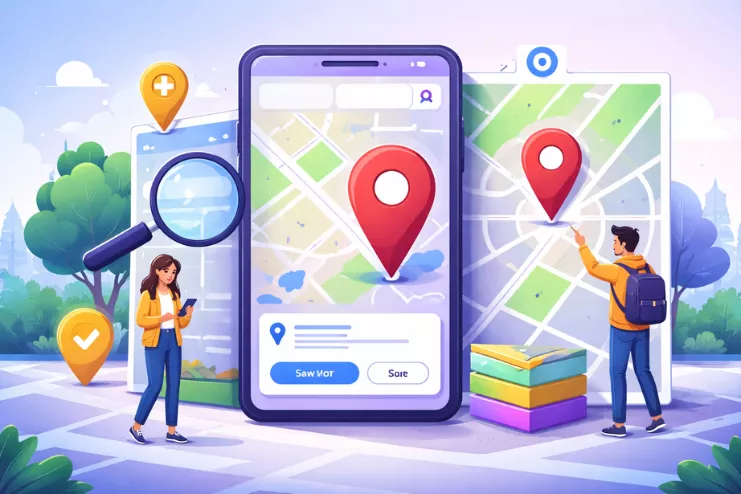
Dropping a pin in Google Maps is a basic but powerful action. It works the same way across most devices and does not require any technical knowledge.
- Open the Google Maps app or website
- Use the search bar or manually move the map
- Find the exact location on the map
- Tap and hold (mobile) or left click (desktop)
- A red pin appears showing the dropped pin on Google
- A location card opens at the bottom of the screen
What Does “Dropping a Pin” on Google Maps Mean?
Dropping a pin on Google Maps means placing a marker on an exact spot on the map, even if that place does not have a clear or listed address. This marker is usually shown as a red pin and represents a precise location instead of a general area.
When you drop a pin, Google Maps records the latitude and longitude of that point. This is why a dropped pin is often more accurate than typing a place name into the search bar. Many people confuse dropped pins with saved places, but they are different. A dropped pin is temporary unless you choose to save it.
Key things a dropped pin helps with:
- Marking a location on the map that cannot be searched by name
- Identifying exact spots like entrances, parking areas, or meeting points
- Viewing location details that are not attached to a business listing
- Sharing an accurate location with others using the share option
- Using the pin in Google Maps for directions
From a usability point of view, dropping a pin removes guesswork. Instead of explaining directions verbally, you simply share the pin and let Google Maps guide the user directly.
When Do You NEED to Drop a Pin Instead of Searching an Address?
Searching for a location using the search bar works only when Google has accurate address data. In real life, many situations do not fit this model, which is where a dropped pin becomes essential.
You need to drop a pin when:
- The place is new and not yet indexed on Google Maps
- The address shows the wrong location details
- You are meeting someone in an open area, not a building
- The location is rural, under construction, or unnamed
- You need to share a very specific spot, not a general area
For example, if you are sending a location to a delivery driver, searching by address may lead them nearby but not exactly where you are. Dropping a pin ensures they reach the correct point without multiple phone calls.
This is also common in professional use cases such as site visits, logistics, real estate viewings, or emergency situations where accuracy matters more than labels.
How to Drop a Pin on Google Maps (Step-by-Step)
The core process of dropping a pin is simple, but accuracy depends on how carefully you do it. Zooming in and choosing the correct point on the map is more important than speed.
The steps are:
- Open the Google Maps app or website
- Use the search bar to reach the general area (optional)
- Zoom in on the location on the map for accuracy
- Place your finger or mouse cursor exactly where needed
- Drop a pin by tapping and holding or left clicking
- Check the location card for confirmation
Once the pin is placed, you can interact with it to save, share, or remove a dropped pin as required.
How to Drop a Pin on Google Maps on Mobile (Android & iPhone)
Most users drop pins on mobile devices, so this method is designed for touch-based accuracy.
Step-by-step process:
- Open the Google Maps app on your Android or iPhone
- Make sure your GPS is on for better accuracy
- Use the search bar to find a nearby landmark if needed
- Zoom in until roads and buildings are clearly visible
- Tap and hold on the exact location on the map
- A red pin appears, and the location card opens at the bottom of the screen
After the pin appears, you can view location details, save it to saved pins, or share the pin using the share option. If the pin is slightly off, zoom in more and repeat the process for better placement.
How to Drop a Pin on Google Maps on Desktop (Laptop / PC)
Dropping a pin on a desktop works slightly differently because it uses mouse actions instead of touch.
Step-by-step process:
- Open Google Maps in your browser
- Use the search bar to reach the general area
- Zoom in using your mouse or the plus button
- Left click on the exact location on the map
- A grey or red pin appears depending on context
- A location card opens showing location details
Unlike mobile, you do not need to tap and hold. A simple left click is enough. If you right click, Google Maps may show additional options, but left click is the most direct way to drop a pin in Google Maps on desktop.
What Can You Do After Dropping a Pin?
Once you drop a pin in Google Maps, the pin becomes an active reference point. Many users think dropping a pin is the final step, but in reality, it is only the beginning. A dropped pin unlocks several useful actions that help you work with a location on the map in a practical way.
After a red pin appears, Google Maps shows a location card at the bottom of the screen. This card contains location details such as coordinates, nearby places, and action buttons. These options allow you to manage the pin based on your need, whether personal or professional.
Main actions available after dropping a pin include:
- Saving the pin for future use
- Sharing the pin with others
- Getting directions from your current location
- Reviewing location details linked to that spot
- Removing a dropped pin if it was placed incorrectly
For users searching for a specific location, these actions remove confusion and improve accuracy. From an optimisation perspective, understanding how users interact with location data also supports better Local SEO practices, as accurate locations reduce bounce and navigation errors.
How to Save a Dropped Pin for Later (≈100 words)
Saving a dropped pin is useful when you want to return to the same location again without searching for it repeatedly. Once the pin in Google Maps appears, tap on the location card at the bottom of the screen and choose the save option.
Saved pins can be added to lists such as favourites or custom lists. This is different from a temporary dropped pin, which disappears when you close the app. Saved pins remain linked to your account and can be accessed later through the search bar or saved places section. This feature is especially helpful for frequent locations, travel planning, or managing multiple locations on the map.
How to Share a Dropped Pin with Someone
Sharing a pin is one of the most common reasons people drop a pin on Google Maps. After placing the pin, tap the share option available in the location card. You can then send the pin using messaging apps, email, or by copying the link.
When you share the pin, the recipient sees the exact location on the map instead of a general area. This avoids confusion caused by incorrect addresses. Sharing a dropped pin on Google is faster and more reliable than typing directions, especially when accuracy matters.
How to Get Directions Using a Dropped Pin
Getting directions from a dropped pin allows Google Maps to guide you to an exact point rather than a nearby address. After dropping the pin, tap the directions option from the location card.
You can choose different travel modes such as driving, walking, or public transport. Google Maps then calculates the best route to that precise location on the map. This is useful when navigating unfamiliar areas or locations without clear signage. The red pin acts as a final destination marker, improving navigation accuracy.
Common Problems While Dropping a Pin (And Simple Fixes)
Pin Drops in the Wrong Place
This usually happens when you do not zoom in enough. Always zoom closer before you tap and hold or left-click to improve accuracy.
Pin Disappears Suddenly
A dropped pin is temporary. If you tap elsewhere or close the app, it may disappear. Save the pin to keep it.
Cannot Share the Pin
If the share option is missing, tap the location card fully. Sharing options appear only when the card is expanded.
Incorrect Location Details
Location details depend on map data. A dropped pin shows coordinates, not business information. This is normal behaviour.
App Not Responding Properly
Outdated apps can cause issues. Updating Google Maps often resolves pin placement or sharing problems.
Dropping a Pin vs Searching an Address on Google Maps
| Dropping a Pin | Searching an Address |
| Marks exact location on the map | Shows approximate location |
| Works without an address | Requires address data |
| Best for sharing accuracy | Best for known places |
| Uses coordinates | Uses indexed listings |
| Ideal for new or remote areas | Ideal for established locations |
This comparison helps users decide when to use a dropped pin instead of relying on the search bar.
How to Drop Multiple Pins on Google Maps
Trip Planning
Multiple pins help plan routes by marking hotels, attractions, and stops in advance. Each pin acts as a reference point during travel.
Business Locations
Professionals can mark several sites on the map to manage visits, inspections, or service areas efficiently.
Custom Maps
Using saved pins allows grouping locations together, making navigation easier without repeatedly searching.
How to Edit or Remove a Dropped Pin
Removing a Temporary Pin
Tap elsewhere on the map or close the location card to remove a dropped pin quickly.
Deleting a Saved Pin
Open saved pins, select the location, and remove it from the list.
Editing Saved Locations
Saved pins can be renamed or moved slightly if adjustments are needed.
How to Drop a Pin When There Is No Address
Rural or Open Areas
Pins help mark fields, trails, or construction sites where no address exists.
New Developments
Recently built locations may not appear in search results, making pins essential.
Meeting Points
Pins mark exact meeting spots rather than vague nearby addresses.
Can You Drop a Pin on Google Maps Without Internet?
Google Maps allows limited functionality offline if maps are downloaded in advance. You can still view the location on the map and see saved pins. However, live navigation, sharing the pin, and updated location details require an internet connection. Dropping a pin offline works best when preparation is done beforehand, especially for travel in areas with poor connectivity.
Conclusion
Dropping a pin on Google Maps is one of the simplest yet most accurate ways to work with locations in the real world. When searching for a specific place using the search bar fails, a dropped pin on Google gives you full control over the exact location on the map. Whether you tap and hold on mobile or left-click on desktop, the red pin removes confusion and improves clarity.
From saving important places in saved pins, sharing an exact spot using the share option, or navigating through precise directions, pins in Google Maps support everyday needs and professional use cases alike. For users who want clarity without technical complexity, this feature bridges the gap between digital maps and real-world locations. Understanding how pins work also improves location accuracy, which indirectly supports better Local SEO, search engine optimisation, and user experience across platforms.
FAQs